API Gateway
SIU AI API — End-User Guide
Gateway: https://api.cs.siu.edu
Hosted model: SIU’s Qwen 3.8 27B deployment
API style: OpenAI compatible through LiteLLM
Guide version: 2026-08-21
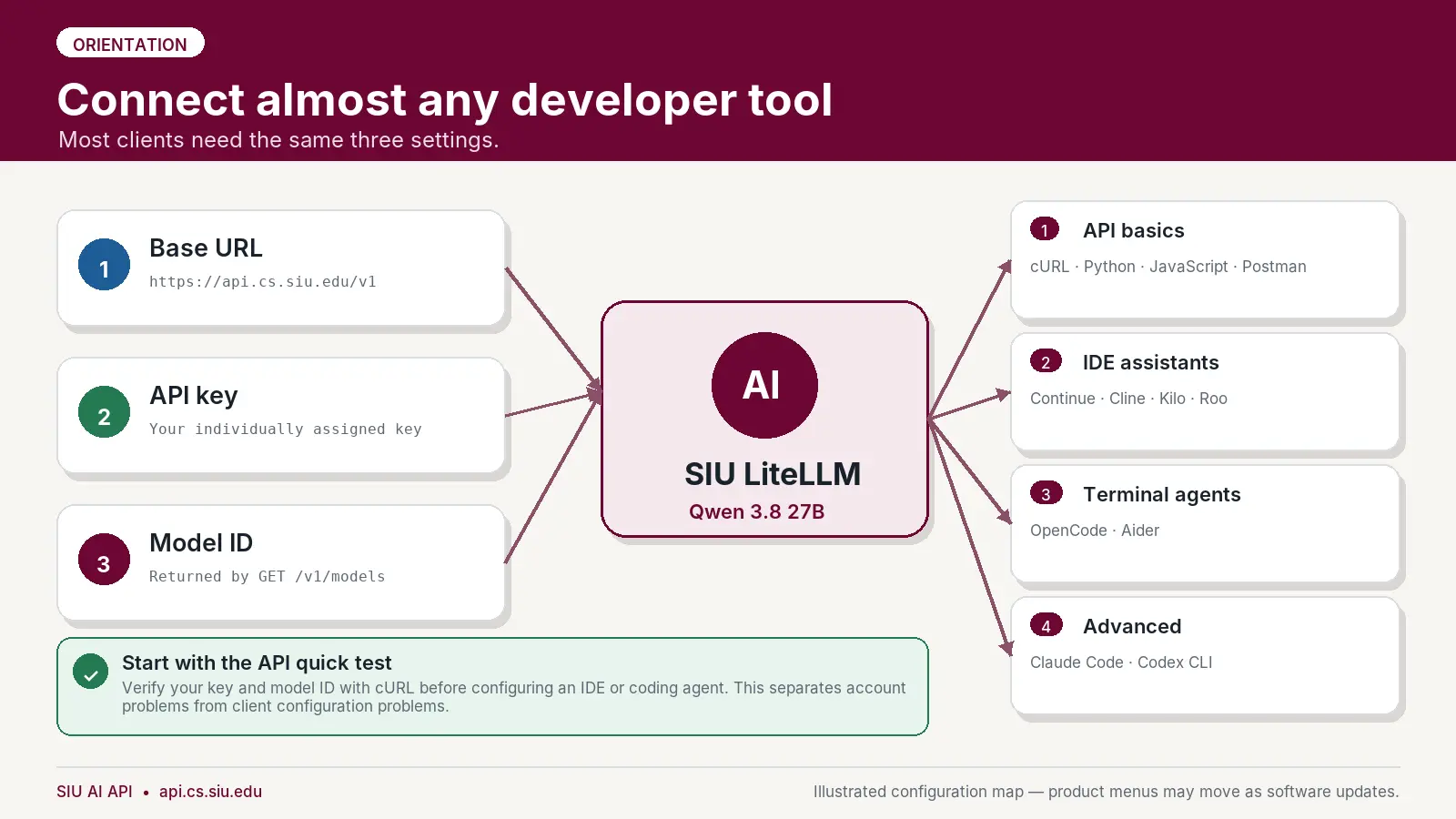
The SIU Computer Science AI API can be used from ordinary programs, REST clients, IDE assistants, and coding agents. Most integrations require only three values:
| Setting | Value |
|---|---|
| OpenAI-compatible base URL | https://api.cs.siu.edu/v1 |
| API key | Your individually assigned SIU AI key |
| Model ID | The exact Qwen model ID returned by GET /v1/models |
Do not guess the model ID. The model’s display name is Qwen 3.8 27B, but the public LiteLLM alias may be different. Run the model-discovery request first and copy the exact id value.
Protect your key. Treat it like a password. Do not put it in source code, screenshots, assignments, public repositories, shared configuration files, or browser-side JavaScript.
Contents
- Choose the right client
- Get ready and discover the model
- cURL
- Python OpenAI SDK
- JavaScript / TypeScript OpenAI SDK
- Continue for VS Code or JetBrains
- Cline for VS Code
- OpenCode
- Aider
- Postman
- LangChain and LangGraph
- Claude Code through LiteLLM
- Codex CLI
- Kilo Code
- Roo Code
- SIU LibreChat
- Troubleshooting
- Security and responsible use
- Included files
1. Choose the right client
| Client | Good choice for | API route | Recommendation |
|---|---|---|---|
| cURL | First test and troubleshooting | /v1/models, /v1/chat/completions | Start here |
| Python OpenAI SDK | Python assignments and services | /v1/chat/completions | Recommended |
| JavaScript OpenAI SDK | Node.js and TypeScript applications | /v1/chat/completions | Recommended |
| Continue | IDE chat, code edits, and optional agent mode | /v1/chat/completions | Recommended; validate tools before agent mode |
| Cline | Agentic development in VS Code | /v1/chat/completions | Recommended with command approval on |
| OpenCode | Terminal coding agent | /v1/chat/completions | Recommended |
| Aider | Git-oriented terminal coding | /v1/chat/completions | Recommended |
| Postman | Visual REST testing and instruction | /v1/models, /v1/chat/completions | Recommended |
| LangChain / LangGraph | AI application development | /v1/chat/completions | Recommended |
| Kilo Code | VS Code coding assistant | /v1/models, /v1/chat/completions | Recommended; validate tools |
| Roo Code | VS Code coding agent with a LiteLLM provider | /v1/model/info, chat routes | Recommended; use fallback if discovery is disabled |
| Claude Code | Claude Code interface routed to Qwen | /v1/messages | Advanced and compatibility-dependent |
| Codex CLI | Codex interface routed to Qwen | /v1/responses | Advanced; publish only after endpoint validation |
A practical starting set for students: cURL, Python, JavaScript, Continue, Cline, OpenCode, Aider, and Postman. Claude Code and Codex should remain in an advanced section because they use different wire protocols and may not reproduce all native vendor behavior when backed by Qwen.
2. Get ready and discover the model
![Required first step graphic titled “Find the public model ID first” with the subtitle: “Do not guess the model alias—ask the gateway what your key can access.” Across the top are three steps: 1. Set your key Use a temporary shell variable; do not paste it into screenshots. 2. List models Call the OpenAI-compatible models endpoint. 3. Copy the ID Use the exact Qwen 3.8 27B ID in every client. A terminal window labeled: Terminal — Linux, macOS, or WSL Contains the following commands: export SIU_AI_KEY="paste_your_assigned_key_here" curl https://api.cs.siu.edu/v1/models \ -H "Authorization: Bearer $SIU_AI_KEY" # Optional: pretty-print with jq curl -s https://api.cs.siu.edu/v1/models \ -H "Authorization: Bearer $SIU_AI_KEY" | jq . On the right side is a panel titled: Read the response Look inside the data array. A code window labeled: response.json Contains: { "data": [ { "id": "MODEL_ID" } ] } Below is a highlighted note: Save this value Set SIU_AI_MODEL to the exact ID. Footer text: SIU AI API • api.cs.siu.edu Illustrated configuration map — product menus may move as software updates.](../_common/images/resources/ai-api-gateway/01-find-model.webp)
2.1 Obtain an API key
Use the key issued to you by the department. Keys may have individual model access, rate limits, concurrency limits, and budgets. Do not use another person’s key.
2.2 Set temporary environment variables
Linux, macOS, or WSL
Windows PowerShell
These values last for the current terminal session. That is usually safer than permanently storing a key in shell startup files.
2.3 List the models your key can use
Linux, macOS, or WSL
curl --fail-with-body --silent --show-error \
  "$SIU_AI_BASE_URL/models" \
  -H "Authorization: Bearer $SIU_AI_KEY"
With jq installed:
Windows PowerShell
$headers = @{ Authorization = "Bearer $env:SIU_AI_KEY" }
$response = Invoke-RestMethod `
  -Uri "$env:SIU_AI_BASE_URL/models" `
  -Headers $headers `
  -Method Get

$response.data.id
Copy the exact ID corresponding to the SIU Qwen 3.8 27B deployment, then set it:
A ready-made discovery script is included at examples/curl/list-models.sh.
3. cURL
![API quick start graphic titled “Test with cURL” with the subtitle: “The fastest way to verify the URL, key, model, and request body.” Across the top are three steps: 1. Set variables Keep the secret out of shell history when possible. 2. Send POST Use /v1/chat/completions and JSON. 3. Read content The answer is in choices[0].message.content. A terminal window labeled: Terminal — chat completion Contains the following commands: export SIU_AI_MODEL="MODEL_ID_FROM_V1_MODELS" curl https://api.cs.siu.edu/v1/chat/completions \ -H "Authorization: Bearer $SIU_AI_KEY" \ -H "Content-Type: application/json" \ -d '{ "model": "MODEL_ID_FROM_V1_MODELS", "messages": [ {"role":"user", "content":"Explain recursion."} ], "temperature": 0.2 }' On the right side is a panel titled: Expected result HTTP 200 and a choices array. Large text: 200 OK A code window labeled: response excerpt Contains: "choices": [{ "message": { "content": "..." } }] Below the code window: Included file: examples/curl/chat.sh Footer text: SIU AI API • api.cs.siu.edu Illustrated configuration map — product menus may move as software updates.](../_common/images/resources/ai-api-gateway/02-curl.webp)
Use cURL before configuring another application. A successful request confirms that the network path, TLS connection, API key, model access, and basic LiteLLM route all work.
3.1 Send a chat-completion request
The included script safely constructs the JSON from environment variables:
The equivalent request is:
curl --fail-with-body --silent --show-error \
  "$SIU_AI_BASE_URL/chat/completions" \
  -H "Authorization: Bearer $SIU_AI_KEY" \
  -H "Content-Type: application/json" \
  --data "$(cat <<JSON
{
  "model": "$SIU_AI_MODEL",
  "messages": [
    {
      "role": "system",
      "content": "You are a concise and careful programming assistant."
    },
    {
      "role": "user",
      "content": "Write a Python function that checks whether a string is a palindrome."
    }
  ],
  "temperature": 0.2,
  "stream": false
}
JSON
)"
A successful response normally contains:
3.2 PowerShell request
$headers = @{
  Authorization = "Bearer $env:SIU_AI_KEY"
  "Content-Type" = "application/json"
}

$body = @{
  model = $env:SIU_AI_MODEL
  messages = @(
    @{
      role = "user"
      content = "Explain recursion using a small Python example."
    }
  )
  temperature = 0.2
  stream = $false
} | ConvertTo-Json -Depth 5

$response = Invoke-RestMethod `
  -Uri "$env:SIU_AI_BASE_URL/chat/completions" `
  -Headers $headers `
  -Method Post `
  -Body $body

$response.choices[0].message.content
4. Python OpenAI SDK
![Python setup guide titled “Use the Python OpenAI SDK” with the subtitle: “Change the client base URL; the rest looks like a normal OpenAI-compatible request.” Across the top are three steps: 1. Create an environment python -m venv .venv, then activate it. 2. Install the SDK python -m pip install --upgrade openai 3. Export settings Set SIU_AI_KEY and SIU_AI_MODEL. A code window labeled: quickstart.py Contains the following Python code: import os from openai import OpenAI client = OpenAI( base_url="https://api.cs.siu.edu/v1", api_key=os.environ["SIU_AI_KEY"], ) reply = client.chat.completions.create( model=os.environ["SIU_AI_MODEL"], messages=[ {"role": "user", "content": "Explain stacks."} ], temperature=0.2, ) print(reply.choices[0].message.content) On the right side is a panel titled: Run it Cross-platform commands A terminal window labeled: Terminal Contains the commands: python -m pip install openai export SIU_AI_KEY="..." export SIU_AI_MODEL="..." python quickstart.py Below is a highlighted note: Streaming included Use examples/python/streaming.py for token-by-token output. Footer text: SIU AI API • api.cs.siu.edu Illustrated configuration map — product menus may move as software updates.](../_common/images/resources/ai-api-gateway/03-python.webp)
LiteLLM accepts OpenAI-compatible requests, so Python applications can use the standard OpenAI client with a custom base_url.
4.1 Create an environment and install the SDK
Linux, macOS, or WSL
cd examples/python
python3 -m venv .venv
source .venv/bin/activate
python -m pip install --upgrade pip
python -m pip install -r requirements.txt
Windows PowerShell
cd examples\python
py -m venv .venv
.\.venv\Scripts\Activate.ps1
python -m pip install --upgrade pip
python -m pip install -r requirements.txt
4.2 Run the included example
Make sure SIU_AI_KEY and SIU_AI_MODEL are set, then run:
The essential code is:
import os
from openai import OpenAI

client = OpenAI(
    base_url="https://api.cs.siu.edu/v1",
    api_key=os.environ["SIU_AI_KEY"],
)

response = client.chat.completions.create(
    model=os.environ["SIU_AI_MODEL"],
    messages=[
        {
            "role": "user",
            "content": "Explain Python list comprehensions with one short example.",
        }
    ],
    temperature=0.2,
)

print(response.choices[0].message.content)
4.3 Stream output as it is generated
The complete examples include timeouts, retries, and basic error handling:
5. JavaScript / TypeScript OpenAI SDK
![Node.js guide titled “Use the JavaScript / TypeScript SDK” with the subtitle: “Point the official OpenAI client at the SIU gateway with baseURL.” Across the top are three steps: 1. Initialize npm init -y 2. Install npm install openai 3. Run node quickstart.mjs A code window labeled: quickstart.mjs Contains the following JavaScript code: import OpenAI from "openai"; const client = new OpenAI({ baseURL: "https://api.cs.siu.edu/v1", apiKey: process.env.SIU_AI_KEY, }); const reply = await client.chat.completions.create({ model: process.env.SIU_AI_MODEL, messages: [ { role: "user", content: "Explain promises." }, ], temperature: 0.2, }); console.log(reply.choices[0].message.content); On the right side is a panel titled: Environment Keep secrets outside source code. A terminal window labeled: Terminal Contains the commands: export SIU_AI_KEY="..." export SIU_AI_MODEL="..." npm install npm start Below is a warning note: Do not bundle keys Never place an API key in browser-side JavaScript. Footer text: SIU AI API • api.cs.siu.edu Illustrated configuration map — product menus may move as software updates.](../_common/images/resources/ai-api-gateway/04-javascript.webp)
Use this approach for Node.js, server-side TypeScript, Electron, and other trusted runtimes.
Never place an API key in browser-delivered JavaScript. A key embedded in React, Vue, Angular, or ordinary browser code can be extracted by anyone who loads the application. Put the API call in a trusted server-side component.
5.1 Install and run
This example requires Node.js 22 or newer. Check the active version before installing dependencies:
The version should begin with v22 or a higher number. If it is older, upgrade Node.js using your system administrator’s approved method, open a new terminal, and run the commands again. A Python virtual environment such as (.venv) does not install or change Node.js.
For streaming output:
The essential code is:
import OpenAI from "openai";

const client = new OpenAI({
  baseURL: "https://api.cs.siu.edu/v1",
  apiKey: process.env.SIU_AI_KEY,
});

const response = await client.chat.completions.create({
  model: process.env.SIU_AI_MODEL,
  messages: [
    {
      role: "user",
      content: "Explain async/await in JavaScript with one small example.",
    },
  ],
  temperature: 0.2,
});

console.log(response.choices[0].message.content);
Included files:
- examples/javascript/quickstart.mjs
- examples/javascript/streaming.mjs
- examples/javascript/package.json
6. Continue for VS Code or JetBrains
![Continue configuration guide titled “Configure Continue in VS Code” with the subtitle: “Use a local YAML configuration and a separate secret file.” The left side shows a Continue interface with a sidebar titled: CONTINUE Local Config Files shown: config.yaml .env A code editor is open with the file: ~/.continue/config.yaml Contents: name: SIU AI version: 1.0.0 schema: v1 models: - name: SIU Qwen 3.8 27B provider: openai model: MODEL_ID_FROM_V1_MODELS apiBase: https://api.cs.siu.edu/v1 apiKey: "${{ secrets.SIU_AI_KEY }}" roles: [chat, edit, apply] useResponsesApi: false # Add tool_use only after validation. On the right side is a panel titled: Setup checklist Continue reads the local config automatically. 1. Install Continue VS Code Extensions → Continue 2. Open local config Continue menu → Configs → gear 3. Store the key ~/.continue/.env 4. Reload Open chat and select SIU Qwen At the bottom of the checklist is a warning note: Agent mode Keep command approval on; leave auto-approv... Footer text: SIU AI API • api.cs.siu.edu Illustrated configuration map — product menus may move as software updates.](../_common/images/resources/ai-api-gateway/05-continue.webp)
Continue is a good default IDE guide because it supports chat, code editing, and optional agent capabilities while using an OpenAI-compatible provider.
6.1 Install Continue
Install Continue from the extension or plugin marketplace for your IDE. Open Continue, select the configuration menu, and open the local configuration.
Common local paths:
- Linux and macOS: ~/.continue/config.yaml
- Windows: %USERPROFILE%\.continue\config.yaml
- Secret file: ~/.continue/.env or %USERPROFILE%\.continue\.env
6.2 Copy the supplied configuration
Copy examples/continue/config.yaml to the local Continue configuration path. Replace:
with the exact ID returned by GET /v1/models.
The relevant configuration is:
name: SIU AI
version: 1.0.0
schema: v1

models:
  - name: SIU Qwen 3.8 27B
    provider: openai
    model: replace_with_model_id_from_v1_models
    apiBase: https://api.cs.siu.edu/v1
    apiKey: "${{ secrets.SIU_AI_KEY }}"
    roles:
      - chat
      - edit
      - apply
    useResponsesApi: false
6.3 Store the key separately
Copy examples/continue/.env.example to ~/.continue/.env, rename it to .env, and replace the placeholder:
SIU_AI_KEY=your_assigned_key
Reload the IDE, open Continue, and select SIU Qwen 3.8 27B.
6.4 Agent mode
Start with ordinary chat and edit requests. Only add the following capability after the department confirms native tool calling works with the deployed model and client version:
Keep command approval enabled. Do not enable unrestricted automatic approval on coursework, research code, credentials, or important repositories.
7. Cline for VS Code
7.1 Enter the provider settings
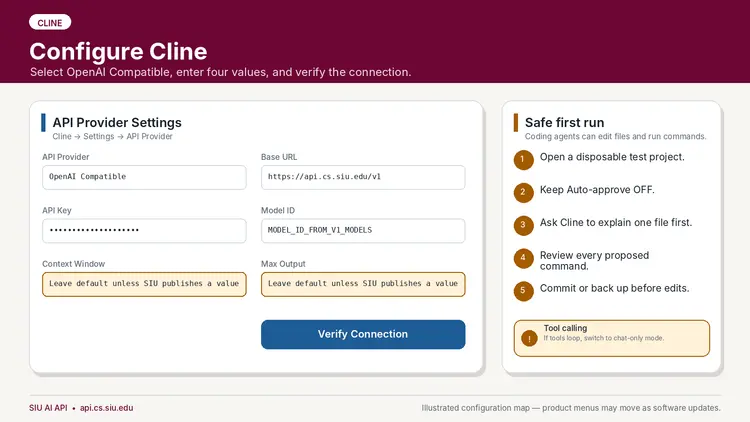
Open Cline, select the settings gear, and configure:
| Field | Value |
|---|---|
| API Provider | OpenAI Compatible |
| Base URL | https://api.cs.siu.edu/v1 |
| API Key | Your assigned SIU AI key |
| Model ID | Exact ID returned by GET /v1/models |
| Context Window | 32768 |
| Max Output Tokens | 4096 |
Select Verify or Verify Connection.
7.2 Perform a safe first test
- Open a small disposable or already-committed project.
- Keep Auto-approve off.
- Ask Cline to explain one file without changing it.
- Request one small edit.
- Review the proposed diff and every command before approval.
If chat works but tool calls repeat, appear as plain text, or fail to execute, switch to chat-only behavior and report the issue with the client version and a redacted transcript.
8. OpenCode
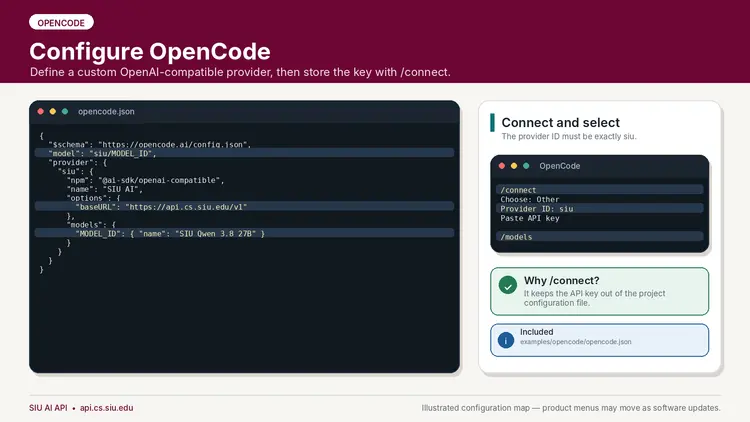
OpenCode can use a custom provider backed by @ai-sdk/openai-compatible.
8.1 Create the provider configuration
Copy examples/opencode/opencode.json into the project directory as opencode.json. A global configuration can instead be placed in OpenCode’s documented user configuration location.
Replace both occurrences of replace_with_model_id_from_v1_models with the exact model ID.
{
  "$schema": "https://opencode.ai/config.json",
  "model": "siu/replace_with_model_id_from_v1_models",
  "provider": {
    "siu": {
      "npm": "@ai-sdk/openai-compatible",
      "name": "SIU AI",
      "options": {
        "baseURL": "https://api.cs.siu.edu/v1"
      },
      "models": {
        "replace_with_model_id_from_v1_models": {
          "name": "SIU Qwen 3.8 27B",
          "limit": {
            "context": 32768,
            "output": 4096
          }
        }
      }
    }
  }
}
The limit.context value tells OpenCode that the model has a 32,768-token total context window. The limit.output value reserves up to 4,096 tokens for a response, so OpenCode compacts conversation history before all 32,768 tokens are used. These settings do not increase the API server’s capacity; they must not exceed the limits configured on the SIU gateway.
8.2 Store the credential with OpenCode
Launch OpenCode and run:
/connect
Then:
- Choose Other.
- Enter the provider ID siu exactly as written in the configuration.
- Paste the assigned API key.
- Run /models.
- Select siu/<your-model-id>.
Using /connect keeps the real key out of the project configuration.
9. Aider
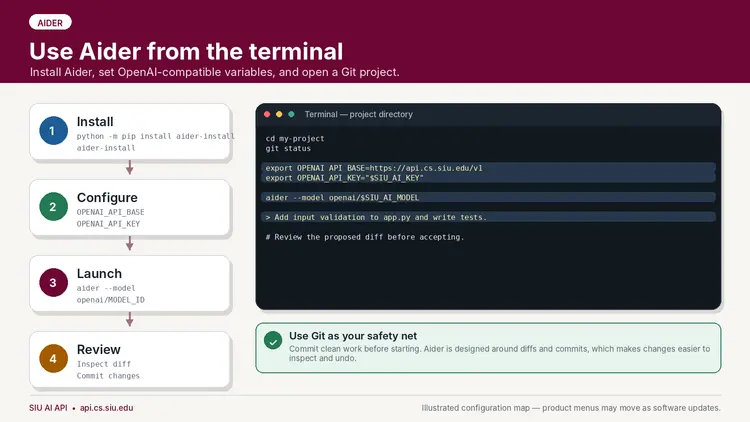
Aider is especially useful for students working from terminals, SSH sessions, Linux servers, or Git-oriented projects.
9.1 Install Aider
9.2 Set the endpoint and key
Linux, macOS, or WSL
Windows PowerShell
9.3 Launch Aider in a Git project
Aider may warn that it does not recognize metadata for a custom model name. Copy the included .aider.model.metadata.json into the project root and replace its model placeholder with the exact fully qualified name used at launch, such as openai/Qwen3.8-27B. The template declares a 32,768-token context window and 4,096-token output limit. Aider uses this metadata for reporting; the SIU gateway still enforces the actual limits.
Included templates:
- examples/aider/.env.example
- examples/aider/.aider.conf.yml
- examples/aider/.aider.model.metadata.json
The key intentionally does not appear in .aider.conf.yml.
10. Postman
![Illustration titled “POSTMAN — Test requests in Postman” with the subtitle “Import the supplied collection and environment—no code required.” Left sidebar: “COLLECTIONS” “+ Import” “SIU AI API” “1 List available models” “2 Chat completion” Main request area: “POST” “{{base_url}}/chat/completions” “Send” “Environment: SIU AI - Local Values” “base_url” “https://api.cs.siu.edu/v1” “model_id” “MODEL_ID” “api_key” The API key value is masked. Request body header: “Body → raw → JSON” JSON request body: ```json { "model": "{{model_id}}", "messages": [ {"role": "user", "content": "Explain REST APIs."} ], "temperature": 0.2 } ``` Response area: “Response” “200 OK” “Tests” “✓ Status is 200” “✓ Contains a choice” Footer: “SIU AI API • api.cs.siu.edu” “Illustrated configuration map — product menus may move as software updates.”](../_common/images/resources/ai-api-gateway/09-postman.webp)
Postman is useful for learning REST APIs and testing requests without writing a program.
10.1 Import the supplied files
In Postman:
- Select Import.
- Import examples/postman/SIU_AI_API.postman_collection.json.
- Import examples/postman/SIU_AI_Local.postman_environment.json.
- Select the SIU AI - Local Values environment.
10.2 Set local values
Set these environment variables:
| Variable | Current value |
|---|---|
| base_url | https://api.cs.siu.edu/v1 |
| api_key | Your assigned key; mark it secret where supported |
| model_id | Exact model ID from the first request |
Do not export or synchronize an environment after placing a real key in it unless the destination is approved. Prefer Postman’s local secret or vault features when available.
10.3 Run the collection
- Send 1 - List available models.
- Copy the Qwen model’s id into model_id.
- Send 2 - Chat completion.
- Confirm 200 OK and the two included tests pass.
You can also import any cURL example from this guide directly through Postman’s import dialog.
11. LangChain and LangGraph
![Alt text: Illustration labeled “FRAMEWORKS” with the title “Use LangChain and LangGraph” and subtitle “Connect ChatOpenAI to the gateway, then reuse it inside a graph node.” Left panel, titled “langchain/quickstart.py,” shows: ```python import os from langchain_openai import ChatOpenAI llm = ChatOpenAI( base_url="https://api.cs.siu.edu/v1", api_key=os.environ["SIU_AI_KEY"], model=os.environ["SIU_AI_MODEL"], temperature=0.2, ) reply = llm.invoke( "What problem does a database index solve?" ) print(reply.content) # The same llm object can be called from a LangGraph node. ``` Right panel: “Minimal graph” “One state, one model node, one answer.” Graph flow: “START” → “answer node” → “END” “State” “question: str” “answer: str” “Examples included” “Both LangChain and LangGraph scripts are ready to run.” Footer: “SIU AI API • api.cs.siu.edu” “Illustrated configuration map — product menus may move as software updates.”](../_common/images/resources/ai-api-gateway/10-langchain-langgraph.webp)
LangChain’s ChatOpenAI integration accepts a custom OpenAI-compatible base_url.
11.1 Install the packages
LangChain 1.x and LangGraph 1.x require Python 3.10 or newer. Python 3.12 is recommended for a new environment. Confirm the interpreter version before creating the virtual environment.
Linux, macOS, or WSL
cd examples/langchain
python3.12 --version
python3.12 -m venv .venv
source .venv/bin/activate
python -m pip install --upgrade pip
python -m pip install -r requirements.txt
Windows PowerShell
cd examples\langchain
py -3.12 --version
py -3.12 -m venv .venv
.\.venv\Scripts\Activate.ps1
python -m pip install --upgrade pip
python -m pip install -r requirements.txt
A virtual environment remains tied to the Python interpreter that created it. If an existing .venv reports Python 3.9 or older, create a new environment with Python 3.10 or newer instead of reusing it.
11.2 Run the LangChain example
Essential configuration:
import os
from langchain_openai import ChatOpenAI

model = ChatOpenAI(
    base_url="https://api.cs.siu.edu/v1",
    api_key=os.environ["SIU_AI_KEY"],
    model=os.environ["SIU_AI_MODEL"],
    temperature=0.2,
)

response = model.invoke("What problem does a database index solve?")
print(response.content)
11.3 Run the minimal LangGraph
The example creates a simple graph:
START → answer node → END
The same ChatOpenAI object is called from the answer node. Build this minimal version successfully before adding tools, persistence, retrieval, or multiple agents.
Included files:
12. Claude Code through LiteLLM (advanced)
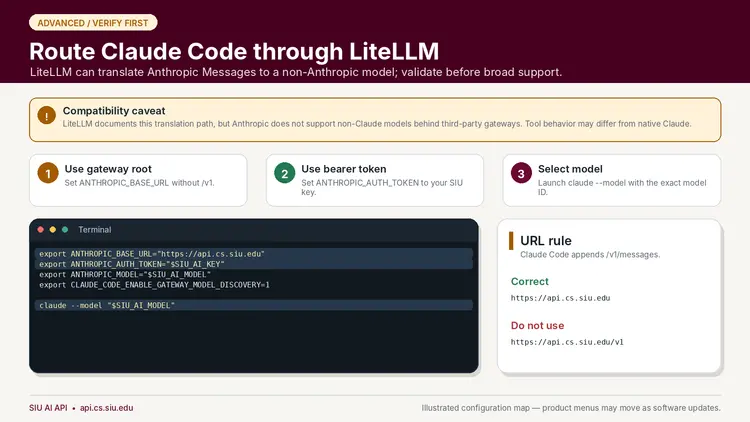
Compatibility warning: This advanced integration translates Claude Code’s Anthropic Messages traffic to Qwen through LiteLLM. Administrators must validate /v1/messages, streaming, and tool calls before publishing it. Reasoning streams require LiteLLM 1.96.0 or later.
12.1 Install Claude Code
Linux or WSL:
Windows PowerShell:
On native Windows, install Git for Windows so Claude Code’s Bash tool is available. Reopen the terminal if claude is not recognized after installation.
12.2 Configure and launch
First set SIU_AI_KEY and SIU_AI_MODEL as described in Section 2. Then run the launcher from the guide’s top-level directory.
Linux or WSL:
Windows PowerShell:
The launchers validate the SIU variables, map every Claude model role to Qwen, and set a 32,768-token context, 4,096-token output limit, and medium reasoning effort. They keep the key in the process environment.
Do not run /login; restart through the launcher if Claude reports missing authentication. Validate the integration first in a disposable repository with a read-only file summary, then review the first edit manually.
12.3 Troubleshooting
| Error | Action |
|---|---|
| Tried to access claude-opus-5 | Exit and relaunch with the included script. |
| Unsupported reasoning_effort high | Relaunch; the scripts set the supported value medium. |
| Content block is not a thinking block | Ask the administrator to upgrade LiteLLM to 1.96.0 or later. |
| /login prompt | Confirm the SIU key is set in the same terminal, then relaunch. |
13. Codex CLI (advanced)
![Alt text: Illustration labeled “ADVANCED / VERIFY FIRST” with the title “Configure Codex CLI” and subtitle: “Current Codex custom providers require the OpenAI Responses protocol.” Warning banner: “Test the endpoint first” “Only publish this guide after https://api.cs.siu.edu/v1/responses works with the deployed model, streaming, and tool calls.” Left configuration panel, titled “~/.codex/config.toml,” shows: ```toml model = "MODEL_ID_FROM_V1_MODELS" model_provider = "siu" [model_providers.siu] name = "SIU AI" base_url = "https://api.cs.siu.edu/v1" env_key = "SIU_AI_KEY" wire_api = "responses" ``` Right panel: “Launch sequence” “Use a custom provider ID—not openai.” “1 Copy config.toml to ~/.codex/” “2 export SIU_AI_KEY=...” “3 Run codex in a Git project” “4 Approve commands manually” Information box: “Expected route” “POST /v1/responses” Footer: “SIU AI API • api.cs.siu.edu” “Illustrated configuration map — product menus may move as software updates.”](../_common/images/resources/ai-api-gateway/12-codex-cli.webp)
Compatibility requirement: Current Codex custom model providers use the OpenAI Responses wire protocol. Do not advertise Codex support until the deployed LiteLLM version and backend pass end-to-end tests on POST /v1/responses, including streaming and tool calls.
13.1 Install Codex
Linux, macOS, or WSL:
Windows PowerShell:
powershell -ExecutionPolicy ByPass -c "irm https://chatgpt.com/codex/install.ps1 | iex"
codex --version
Alternatively, install it with npm on any platform that has Node.js:
Reopen the terminal if codex is not recognized after installation. See the official Codex CLI documentation for current installation options.
13.2 Test the route before configuring Codex
After the administrator confirms the feature is enabled, a minimal request resembles:
curl --fail-with-body \
  "https://api.cs.siu.edu/v1/responses" \
  -H "Authorization: Bearer $SIU_AI_KEY" \
  -H "Content-Type: application/json" \
  -d "{\"model\":\"$SIU_AI_MODEL\",\"input\":\"Reply with the word ready.\"}"
A working Chat Completions route does not prove that the Responses route works.
13.3 Configure a custom provider
Copy examples/codex/config.toml to ~/.codex/config.toml and replace the model placeholder:
model = "replace_with_model_id_from_v1_models"
model_provider = "siu"
model_context_window = 32768
model_auto_compact_token_limit = 28000

[model_providers.siu]
name = "SIU AI"
base_url = "https://api.cs.siu.edu/v1"
env_key = "SIU_AI_KEY"
wire_api = "responses"
The context settings tell Codex that the custom SIU model has a 32,768-token window and trigger compaction at 28,000 tokens, leaving room for a response of up to 4,096 tokens. Keep these settings at the top level. Use the custom provider ID siu; do not overwrite a reserved built-in provider name.
13.4 Launch
Start in a small Git repository, keep command approval enabled, and verify that requests reach the SIU gateway.
14. Kilo Code
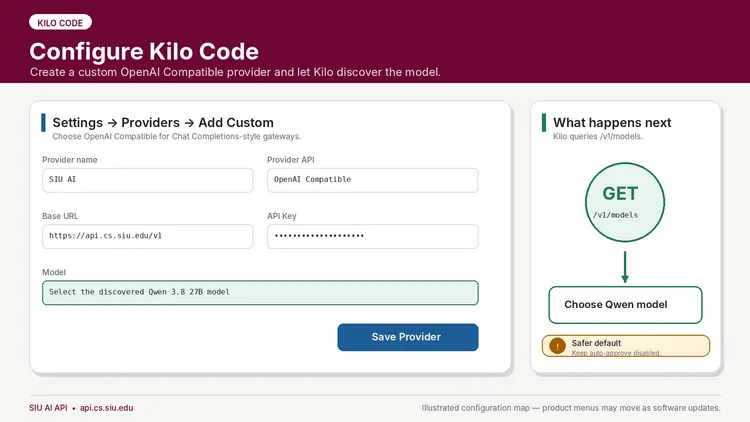
14.1 Add a custom provider
In Kilo Code:
- Open Settings.
- Open Providers.
- Select Add Custom.
- Enter a provider name such as SIU AI.
- Select OpenAI Compatible as the provider API.
- Set the Base URL to https://api.cs.siu.edu/v1.
- Paste the assigned API key.
- Select the discovered Qwen 3.8 27B model.
- In the model configuration, set Context Window to 32768 and Max Output Tokens to 4096.
- Save the provider.
Kilo can query the provider’s /v1/models endpoint after a valid Base URL and key are entered. If the token fields are not available in the settings screen, set the custom model’s limits in kilo.jsonc:
These limits enable accurate context tracking and compaction for the custom SIU model. If discovery fails, verify the same key with the cURL model-list request before changing Kilo settings.
Keep automatic command approval disabled during initial use.
15. Roo Code
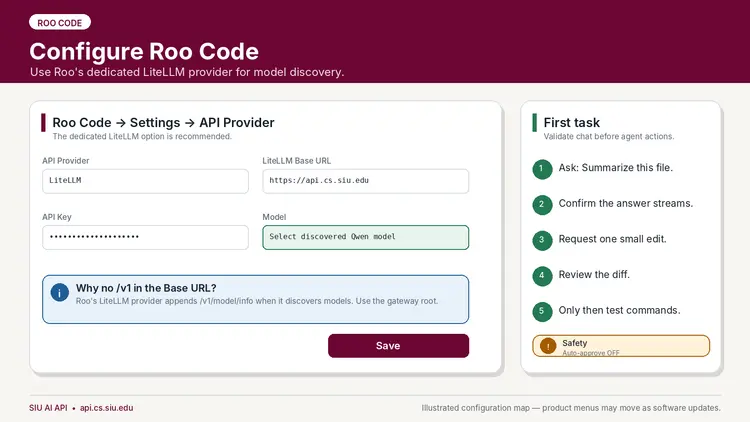
Roo Code has a dedicated LiteLLM provider. It can retrieve model information from the gateway and is the preferred first configuration.
15.1 Dedicated LiteLLM provider
Configure:
| Field | Value |
|---|---|
| API Provider | LiteLLM |
| LiteLLM Base URL | https://api.cs.siu.edu |
| API Key | Your assigned SIU AI key |
| Model | Select the discovered Qwen model |
Use the gateway root without /v1 in this dedicated provider because Roo appends its LiteLLM model-information route. Verify that the discovered model reports a Context Window of 32768 and Max Output Tokens of 4096. If either value is wrong, ask the administrator to correct /v1/model/info or use the fallback below.
15.2 Fallback when LiteLLM discovery is unavailable
Some gateways restrict /v1/model/info. If the dedicated provider cannot list models:
- Select OpenAI Compatible instead.
- Set Base URL to https://api.cs.siu.edu/v1.
- Paste the assigned API key.
- Enter the exact model ID manually.
- Open Model Configuration and set Context Window to 32768 and Max Output Tokens to 4096.
15.3 Safe first task
Ask Roo to summarize a file, confirm streaming works, request one small edit, review the diff, and only then test command execution. Keep auto-approve off.
A concise settings reference for Cline, Kilo, and Roo is included at examples/UI_SETTINGS_REFERENCE.md.
16. LibreChat web interface
SIU LibreChat provides a browser-based way to chat with the API provided large language models without installing a programming language, command-line tool, or IDE extension. The site is available only while connected to the SIU campus network or the SIU VPN.
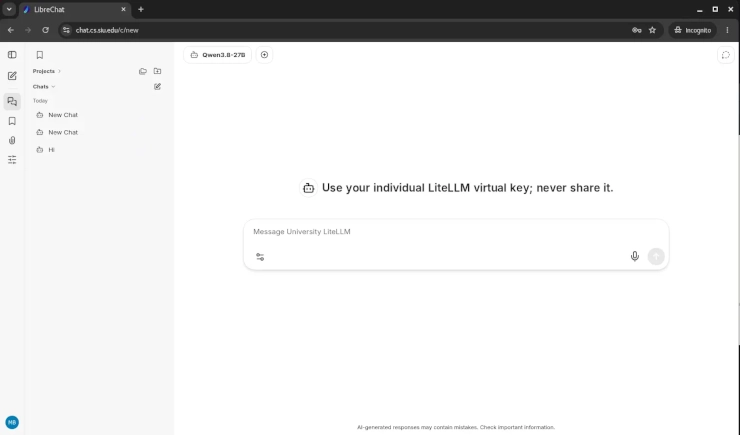
The LibreChat account and the SIU AI API key are separate credentials. Create an account for the website first, then add the individually assigned API key after signing in.
16.1 Create and sign in to an account
- Connect the device to the SIU campus network or the SIU VPN.
- Open https://chat.cs.siu.edu.
- Select Sign up on the LibreChat sign-in page.
- Complete the self-registration form using the requested account information.
- Return to the sign-in page and log in with the newly created LibreChat account.
Do not paste the SIU AI API key into the account password field. The account password signs in to LibreChat; the API key authorizes model requests.
16.2 Add the SIU AI API key
After signing in:
- Select the SIU AI endpoint or model made available by the site.
- If LibreChat requests an API key, paste the individually assigned SIU AI key and save it.
- If no prompt appears, open Settings → Data controls → API keys, locate the SIU AI endpoint, enter the assigned key, and save it.
- Start a new conversation and send a small test message such as Reply with the word ready.
The SIU LibreChat deployment already supplies the service configuration. Do not enter a different base URL or model unless an administrator specifically instructs you to do so.
16.3 Troubleshoot access
- If the website does not load, confirm that the device is on the campus network or connected to the SIU VPN.
- If sign-in fails, confirm the LibreChat account credentials or use the site's password-recovery option if it is available.
- If the site accepts the account login but the model rejects a request, re-copy the API key without leading or trailing spaces.
- If the key still fails, run the model-discovery test in Section 2 or contact the service administrator.
- Never enter another person's key or share an assigned key through a conversation.
17. Troubleshooting
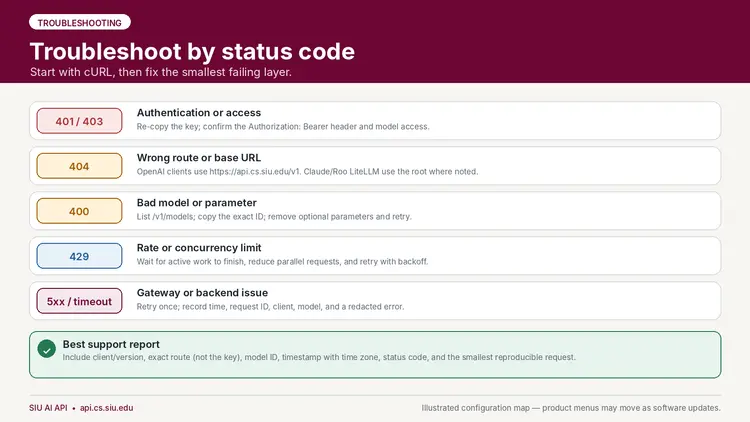
Always reproduce the problem with the cURL model-list or chat request first. This determines whether the failure belongs to the account/gateway or only to the client configuration.
401 or 403 — authentication or access
- Re-copy the key without spaces or surrounding quotation marks in a graphical client.
- Confirm the header is Authorization: Bearer <key>.
- Confirm the key has access to the selected model.
- Make sure the client is not sending an unrelated OpenAI, Anthropic, or saved subscription credential.
- Revoke and replace the key if it may have been exposed.
404 — wrong route or base URL
- OpenAI-compatible clients normally use https://api.cs.siu.edu/v1.
- Claude Code uses https://api.cs.siu.edu as ANTHROPIC_BASE_URL.
- Roo’s dedicated LiteLLM provider uses the root URL; Roo’s OpenAI-compatible fallback uses /v1.
- Do not paste the complete /chat/completions path into a field that expects only the base URL unless that client’s documentation explicitly asks for it.
400 — bad model or unsupported parameter
- Run GET /v1/models again and copy the exact id.
- Remove optional parameters such as response formats, reasoning settings, image inputs, or vendor-specific options.
- Reduce the request to one user message and temperature.
- Confirm the JSON is valid.
fetch is not defined when running JavaScript
The JavaScript example and its pinned OpenAI SDK require Node.js 22 or newer. Check with node --version. If the version is older than 22, upgrade Node.js, open a new terminal, then run npm install and npm start again. Activating or deactivating a Python virtual environment does not change the Node.js runtime.
No matching distribution for langchain-openai
Run python --version inside the active virtual environment. LangChain 1.x requires Python 3.10 or newer. Installing a newer Python does not update an existing environment; deactivate the old environment and create a new one with the newer interpreter.
deactivate
python3.12 -m venv .venv312
source .venv312/bin/activate
python -m pip install --upgrade pip
python -m pip install -r requirements.txt
429 — rate, budget, or concurrency limit
- Wait for an active generation to finish.
- Avoid sending multiple simultaneous requests from the same key.
- Reduce automated retries and parallel agents.
- Retry with exponential backoff rather than an immediate loop.
- Contact the service administrator if a course workflow consistently needs a different limit.
5xx or timeout — gateway or model backend issue
- Retry once after a brief delay.
- Record the time with time zone, model ID, client, route, and redacted error.
- Do not repeatedly retry a large request.
- Test a tiny prompt with cURL.
- If cURL also fails, report the gateway issue rather than reinstalling the client.
Chat works, but an agent cannot use tools
This usually indicates a tool-calling compatibility problem rather than an authentication problem. Record:
- Client and exact version
- Model ID
- Whether the tool call appeared as ordinary text, malformed JSON, or a native tool event
- Whether streaming was enabled
- The smallest prompt that reproduces the problem
Use chat-only or edit-only mode until the integration is validated.
Support-report template
Client and version:
Operating system:
Date/time and time zone:
Base URL or route used:
Model ID:
HTTP status code:
Did the cURL quick test work?:
Redacted error message:
Smallest reproducible prompt/request:
Never include the API key in a support report.
18. Security and responsible use
API keys
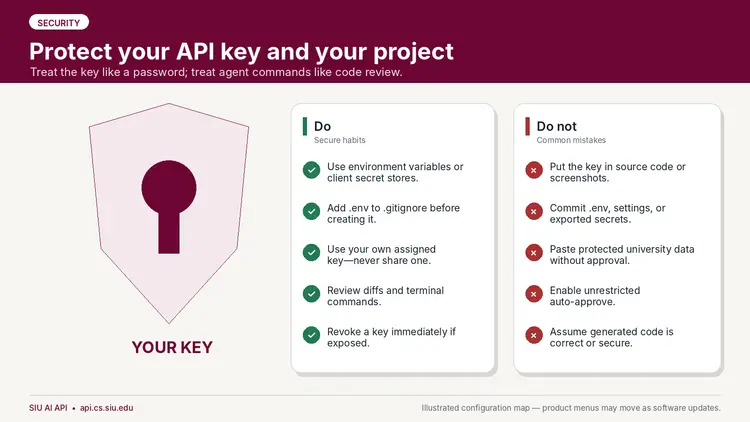
- Use an environment variable, client credential store, or approved secret manager.
- Add .env to .gitignore before creating the file.
- Do not share a key with classmates, teammates, or instructors.
- Do not reuse one person’s key for a class, lab, or public service.
- Revoke a key immediately after accidental exposure.
A useful .gitignore entry is:
.env
.env.*
!.env.example
University and research data
Do not submit protected, regulated, confidential, export-controlled, student-record, health, personnel, credential, or other restricted information unless the data owner and applicable SIU policy explicitly permit that use. The fact that a service is university-hosted does not automatically authorize every category of data.
Coding agents
Coding agents can modify files, run commands, install packages, access local configuration, and follow malicious instructions embedded in repository content. Use them as supervised assistants:
- Commit or back up clean work first.
- Read proposed changes.
- Review terminal commands before approval.
- Keep auto-approve off for consequential actions.
- Do not expose .env, SSH keys, browser profiles, cloud credentials, or production secrets.
- Run untrusted projects in an isolated environment.
- Test generated code and review it for security, licensing, correctness, and course requirements.
Academic use
Follow the instructor’s rules for each assignment. Preserve required citations and disclose AI assistance when the course policy requires it. An available API does not override academic-integrity expectations.
19. Included files
Official documentation references
These links were used to validate the configuration patterns in this guide. Third-party products change; consult their current documentation if a menu or option has moved.
- LiteLLM — OpenAI-compatible proxy examples
- Continue — OpenAI model-provider configuration
- Cline — OpenAI Compatible provider
- OpenCode — providers and custom providers
- Aider — OpenAI-compatible APIs
- Postman — import data
- LangChain — OpenAI-compatible endpoints
- LiteLLM — Claude Code with non-Anthropic models
- Anthropic — Claude Code LLM gateways
- OpenAI — Codex configuration basics
- Kilo Code — OpenAI-compatible providers
- Roo Code — LiteLLM provider